Model Guide
It is useful to remember each Host Workbook is a sandbox, so you should adopt a Move fast and break things attitude with respect to trying out the guide.
Sorting Models
What is sorting
- Sort columns are fields which control the order that your records "sit" in the Excel data sheet.
- For example, it may be helpful to sort an Employee model records based on the Department they are assigned
How to specify Sort columns for a model.
- In the WHOA Excel Ribbon tab, click the Models icon to open the Models Listview form.
- Click once on the model you which to sort to select that row
- Click the Edit Model button to open the Model Edit form.
- In the fields you wish to sort by in the Sort Columns input:
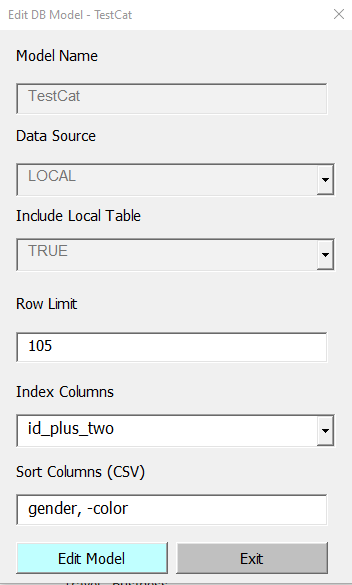
- NOTE you may sort by multiple fields by including a comma before a field
- NOTE to reverse the sort order, include a leading - character (shown above)
When is sorting applied?
Sorting with VBA
In practice, you can build your application to sort at critical times. For example, after importing fresh data, you may wish to run the sort.
1 2 3 4 5 6 7 8 9 10 11 12 13 | Public Sub HowToSortAModel() Const MY_MODEL_NAME As String = "TestCat" ' Get the database for the model you want to sort Dim DB As clsDb Set DB = GetDbOrRaise(ThisWorkbook, MY_MODEL_NAME) ' Sort the records Call DB.SortRows ' Optionally put a message box so you know the sort completed MsgBox "Finished sorting my model: " & MY_MODEL_NAME End Sub |
Sorting via the GUI
Records can be sorted explicitly anytime via the Model Records ListView form:
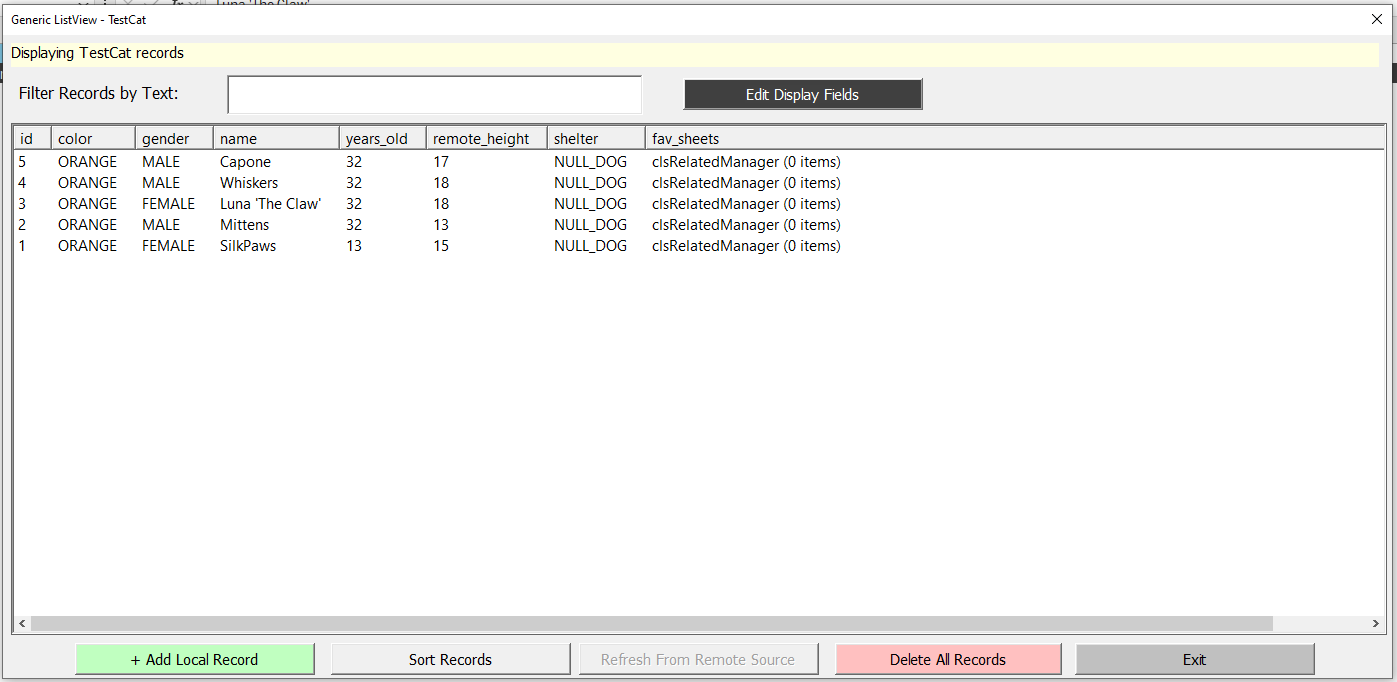
- NOTE in the best situation your users should not have to press this button. See the "If it sounds dumb explaining it, then do something about it"
Caveats
- WARNING Sort columns may only be specified on models with a Local table